A new approach to tempo mapping
Synchrony aligns your performance with a guide track and creates a tempo map for you, so your DAW follows you — not the other way around.
MIDI alignment
VST3 / AU / Standalone
The DAW’s timeline and grid provide much needed structure, but this is often at odds with expressive performance. A tempo map gives you the best of both worlds: complete precision with total rhythmic freedom.
Unfortunately, creating a tempo map often means tedious manual work, nudging markers bar by bar, beat by beat, or correcting the output of automated approaches like Smart Tempo. So most of us just quantise.
By using a musical score as a reference for the underlying metrical structure of a performance, it is possible to discern the extent to which a performer’s tempo has deviated from the grid.
Synchrony uses state-of-the-art music alignment algorithms, available in a plugin for the first time, to align your performance with a score or reference, opening up a totally new approach to tempo mapping.
Your interpretation stays intact. You get a tempo map to drive the playback of your session.
This could be a score exported from Dorico, a quantised performance, or simply a performance recorded to a click.
Forget the click. Play expressively. Dramatic rubato, subtle pauses, whatever the music calls for.

Synchrony aligns your performance to the reference and encodes the tempo fluctuations of your playing as a high-resolution tempo map.
Drag and drop the tempo map into your DAW and the whole arrangement will follow your original interpretation, with all your virtual instruments perfectly in sync.
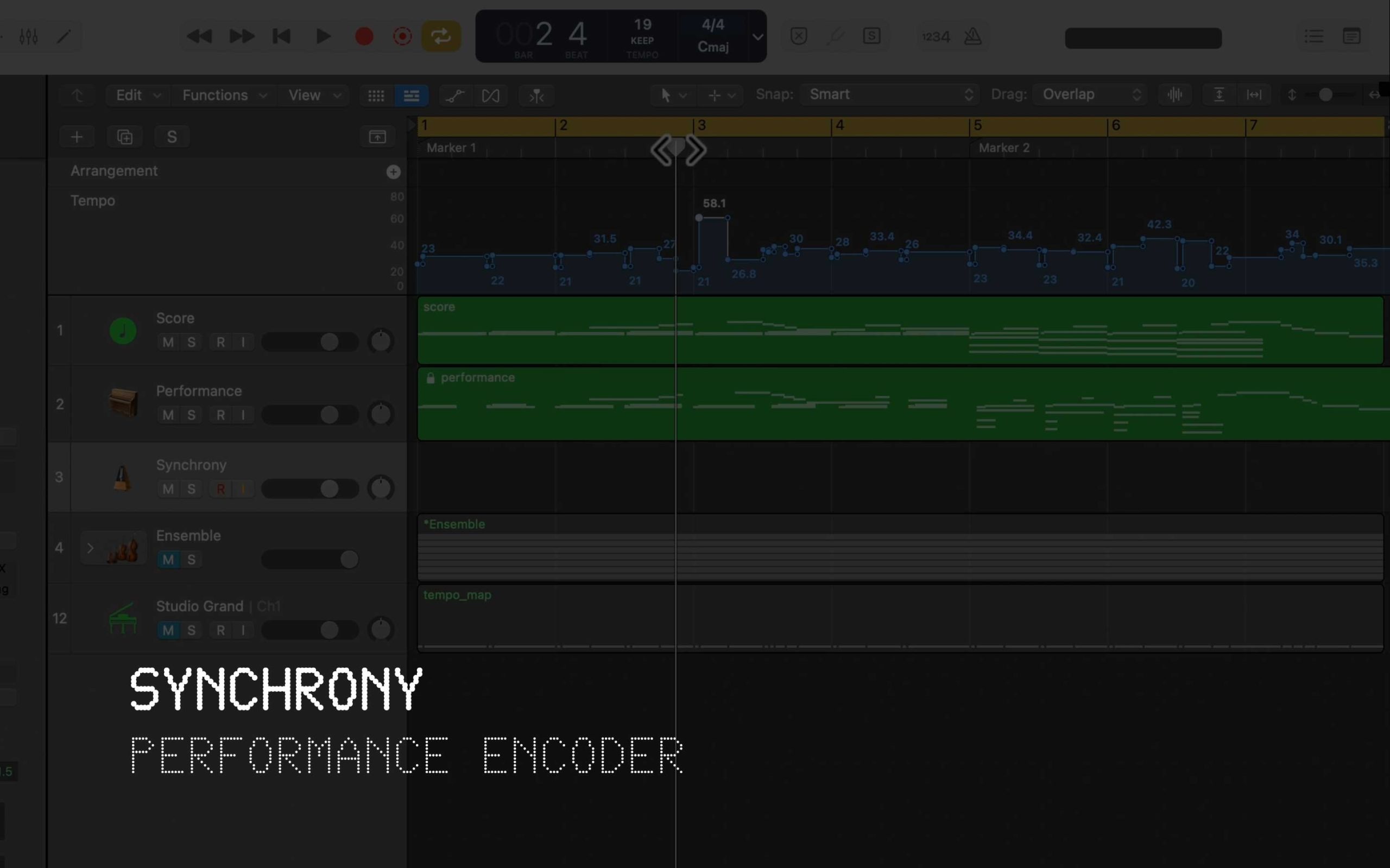
Synchrony matches your performance to the reference one note at a time — revealing the tempo map hidden inside every performance.
Not one dictated by your tools. Synchrony gives you the choice.
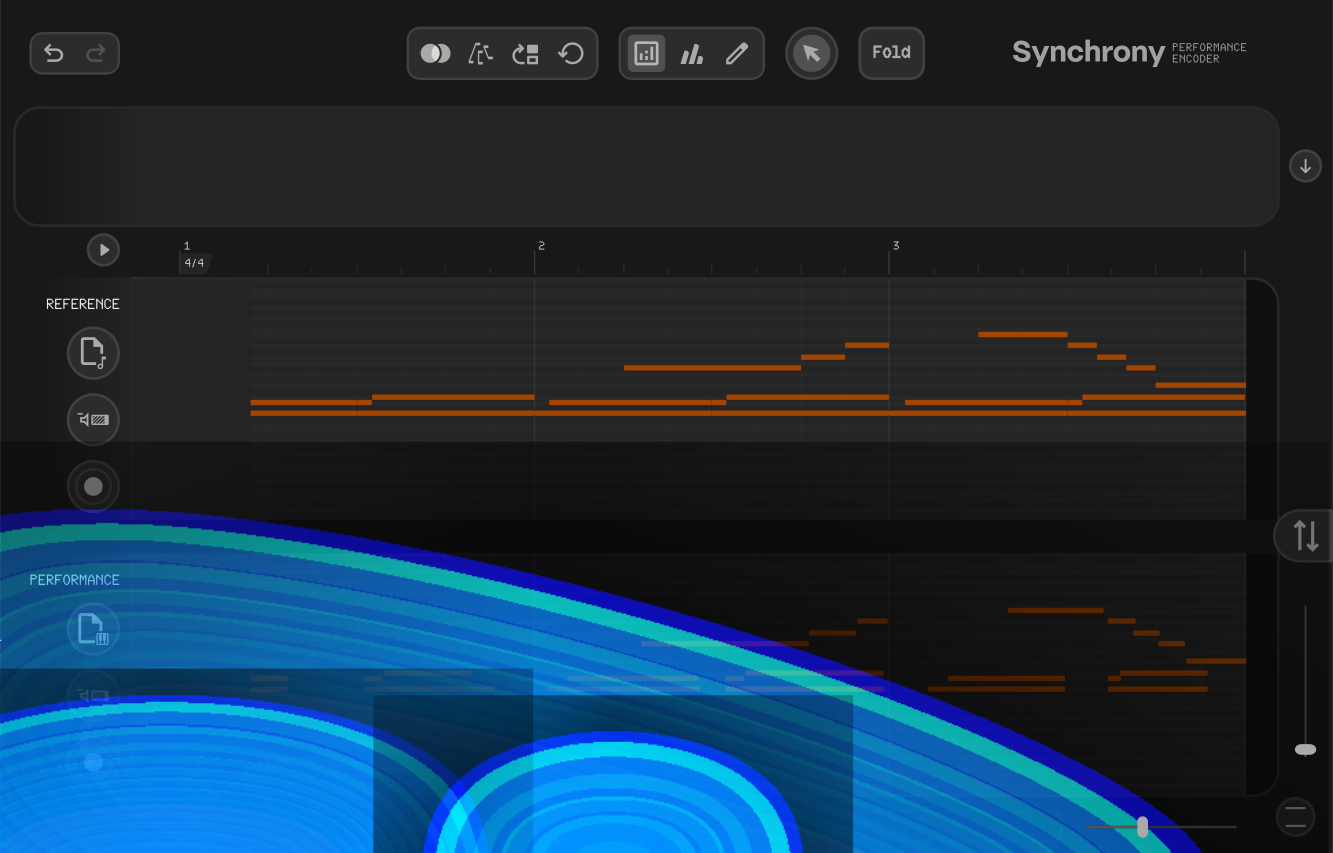
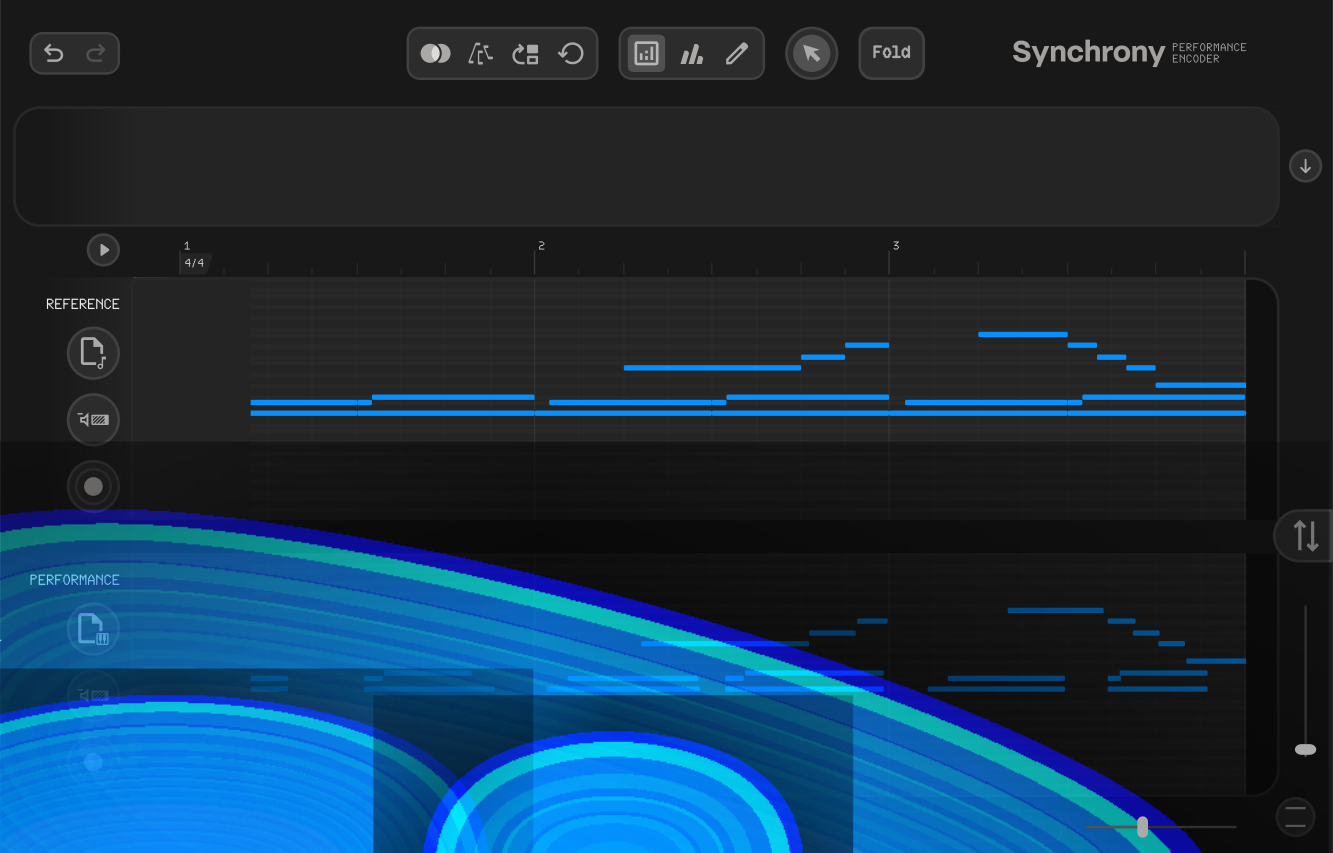
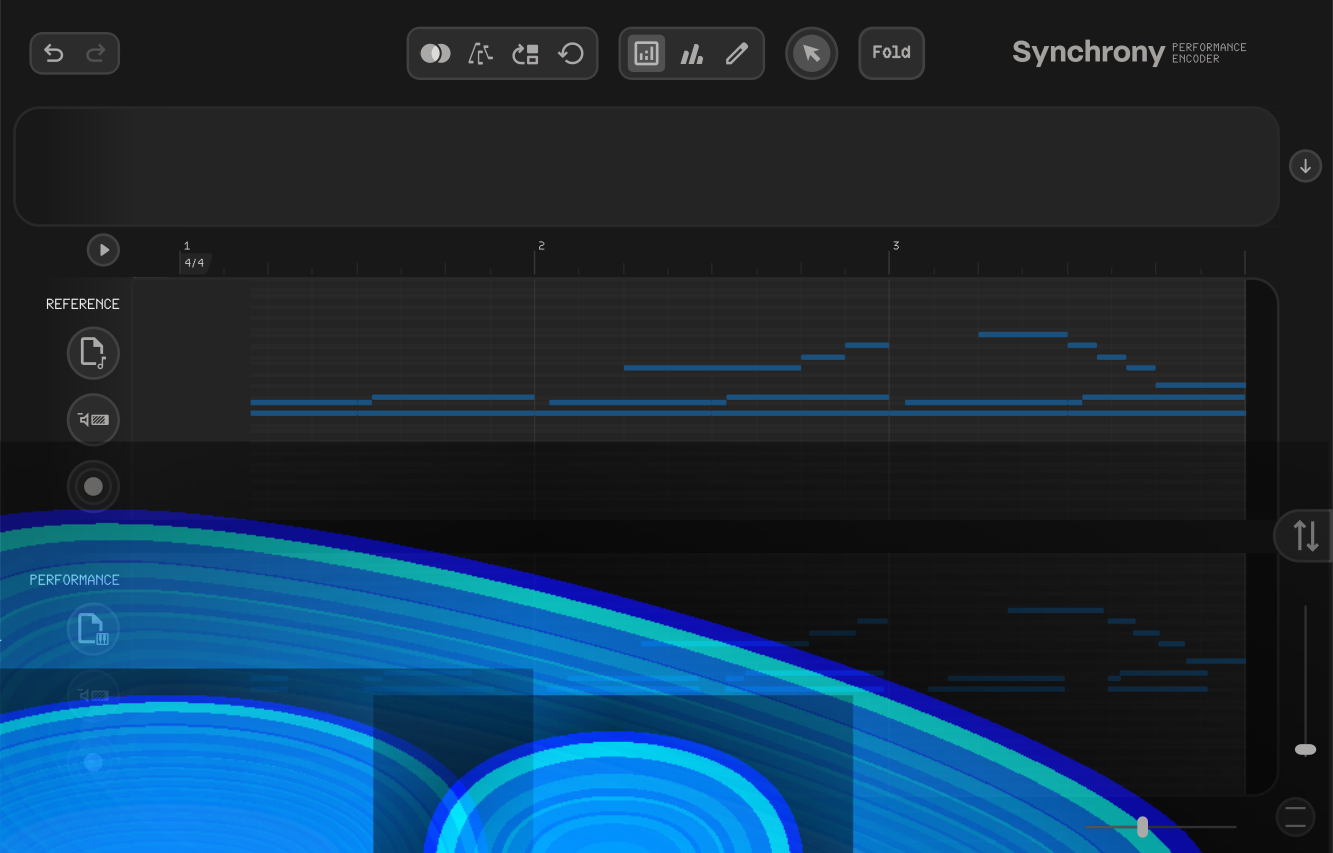
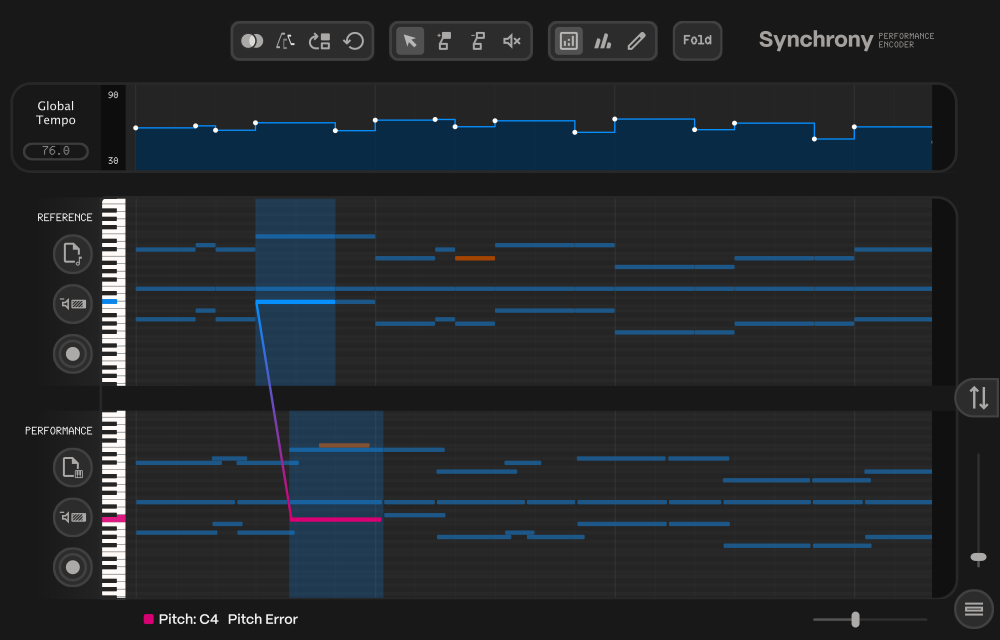
Score and performance side by side, with the tempo map generated from your alignment.
Displays the generated tempo curve. Edit or delete tempo points and export the tempo map to your DAW to drive playback.
Tools for editing the alignment: match, remove match, and mute. Refine the note-by-note mapping between score and performance.
Synchrony has three view modes: analysis, velocity, and editor. Analysis gives you a quick overview; editor is for detailed adjustments.
Your reference. This can be a quantised or unquantised performance, or a musical score.
Visualises the note-by-note mapping between score and performance. Review matches and step in to refine.
Your expressive playing, displayed in linear or musical time so you can see exactly how your timing deviates from the score.
No more nudging tempo markers one by one. Synchrony generates the map in a fraction of a second.
When every part follows the same tempo map, your whole arrangement moves together.
Map velocity and CCs from one performance to another, capturing dynamics and expression alongside timing.
The alignment editor lets you visualise the mapping between your performance and the reference, and step in to refine it.
The standalone app lets you record, host plugins, and switch between musical and linear time modes. Perfect for notation software workflows.
Orchestral mockups, film scores, chamber music. Any session where you want rhythmic freedom across multiple parts.
The performance felt right, but quantising was the only practical choice. Now it isn’t.
The expression lives in the tempo map. Your MIDI data stays quantised and notation-ready, ready to export as parts for a scoring stage.
Note-by-note alignment excels where other methods fall short: dense passages, high tempo variability, irregular metres, and rapidly changing time signatures.
Symbolic Music brings algorithms from musical performance analysis research into practical tools for working musicians. Synchrony is the first release: purpose-built software grounded in peer-reviewed science, designed for real production workflows.
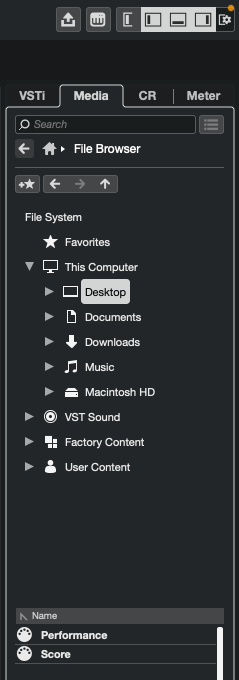
Prerequisite: Disable “Ignore Master Track Events on Merge” in Preferences > MIDI > MIDI File.
Install and scan. Add Synchrony to your VST3 plugin folder and scan in Cubase’s Plugin Manager.
Create an instrument track. Load Synchrony as a VST instrument.
Load your score. Import the score MIDI file into Synchrony.
Record your performance. Arm the track and play your performance.
Align. Run the alignment to generate the tempo map.
Export the tempo map. Drag the tempo map directly from Synchrony into your Cubase project.
Install and scan. Add Synchrony to your AU plugin folder. Logic scans automatically.
Create a software instrument track. Load Synchrony as an AU instrument.
Export your MIDI regions. Use Cmd+Alt+E. Use the Strip Silence button and tempo editor to remove unwanted data.
Load into Synchrony. Import the exported score and performance MIDI files.
Align. Run the alignment to generate the tempo map.
Export the tempo map. Drag the tempo map directly from Synchrony into your Logic session.
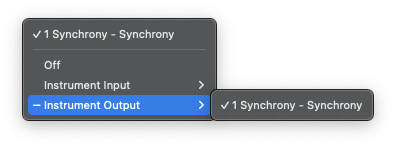
MIDI thru
Load your instrument on a second track, open Internal MIDI In settings, select Instrument Output > 1 Synchrony, and enable the Audition button.
Install and scan. Add Synchrony to your VST3/AU plugin folder and scan in Ableton’s Preferences.
Create a MIDI track. Load Synchrony as an instrument on a MIDI track.
Export your MIDI clips. Use Cmd+Shift+E (Mac) or Ctrl+Shift+E (Windows). Note that tempo data won’t export, so adjust using Synchrony’s tempo slider or use the record feature for multi-tempo projects.
Load into Synchrony. Import the exported score and performance MIDI files.
Align. Run the alignment to generate the tempo map.
Export the tempo map. Drag the tempo map directly from Synchrony into your Ableton project.
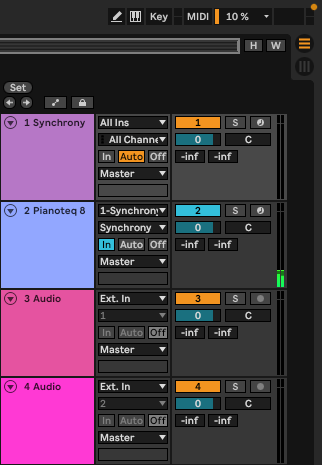
MIDI thru
To audition instruments through Synchrony, create a second track with your instrument, set its input to your Synchrony track, set the input channel to “Synchrony”, set monitoring to “In”, and enable the Audition button in Synchrony.
Install and scan. Add Synchrony to your VST3/AU plugin folder and scan in Studio One.
Create an instrument track. Load Synchrony as a virtual instrument.
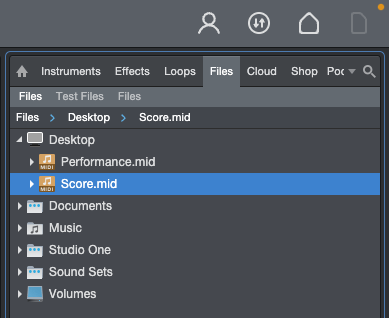
Export your score. Option-drag your MIDI clip from the arrangement into the Files browser, then load into Synchrony.
Export your performance. Repeat for the performance clip. Adjust tempo manually or use the record feature.
Align. Run the alignment to generate the tempo map.
Export the tempo map. Drag the tempo map directly from Synchrony into your Studio One session.
Install and scan. Add Synchrony to your VST3 plugin folder and scan in Reaper’s Preferences.
Create a track. Load Synchrony as an FX plugin on a MIDI track.
Load your score. Select a MIDI clip in your Reaper project, then press the load button in Synchrony. The notes will immediately appear in the score editor.
Load your performance. Select the performance MIDI clip and load it the same way.
Align and export. Run the alignment, then use Synchrony’s built-in Reaper integration to write the tempo map directly to your project.
One-time purchase. No subscription.
Checkout opens via Moonbase. Once complete, you will receive licensing details and access to the plugin.
Join the mailing list for updates, tutorials, workflow tips, and early access to future plugins from Symbolic Music.
No spam. Just useful updates when something changes.
Build tempo maps that capture the essence of your playing, and hear what your music sounds like when every part moves together in perfect Synchrony.